

AI
AI nodes read information, decide, sort, and write.
AI nodes read information, decide, sort, and write. See AI scoring and routing for a full example.
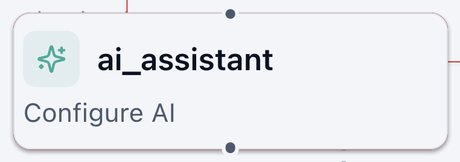
AI Assistant
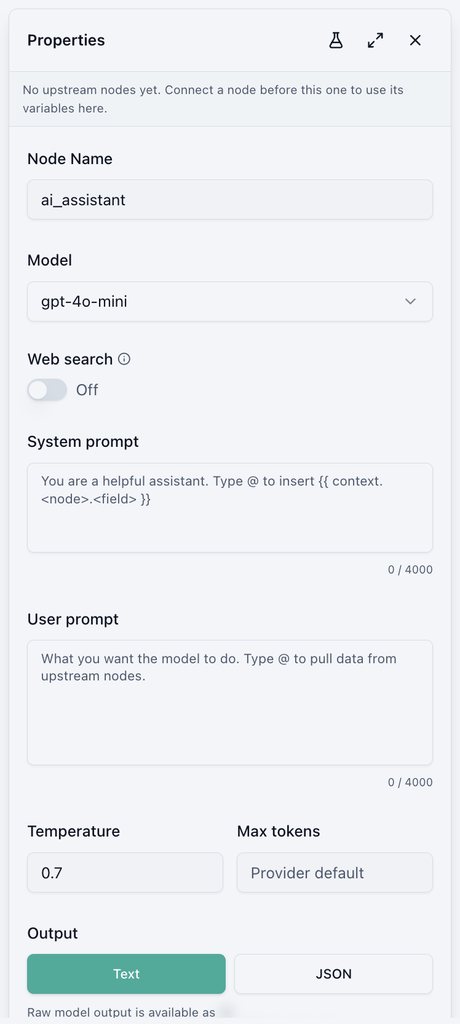
Asks an AI model to summarize, classify, score, translate, or write text.
- Model and optional Web search.
- System prompt (role and rules) and User prompt (the task). Insert data with
@. Each allows up to 4,000 characters. - Temperature and Max tokens (answer length).
- Output: Text, or JSON with named response fields that later nodes can check.
Classify
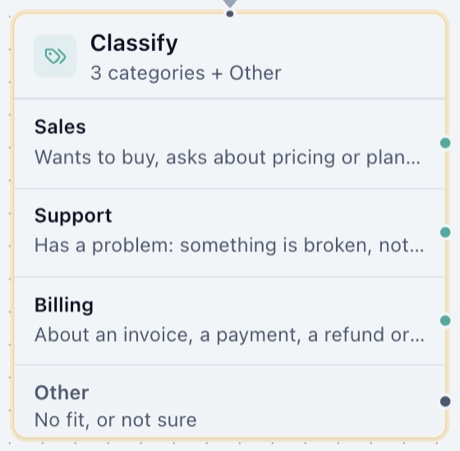
Sorts a piece of text into categories you name, then sends the workflow down the matching path. Use it to route a message by what the customer wants, how they feel, whether they are interested, or how urgent it is.
Exits: one per category, plus Other
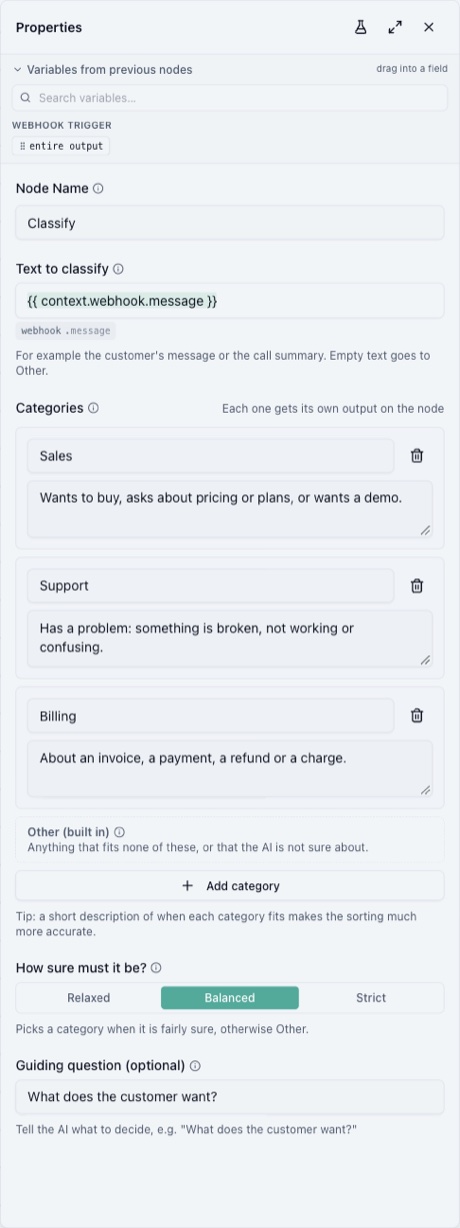
Every field has an ⓘ next to its name. Hover it, or move to it with the keyboard, for a short explanation with an example.
Settings
- Text to classify: the text the AI reads. Type
@to insert it from an earlier node, for example the customer's message, an email body, or a call summary. You can mix inserted values with fixed words. - Categories: the groups the text can be sorted into. Each category has a Name (for example Billing) and a When does it fit? description (for example "Asks about an invoice, a payment or a refund."). The AI reads the descriptions, so a clear one gives better results. You can add up to 50 categories.
- Other (built in): always there, so you don't add it yourself.
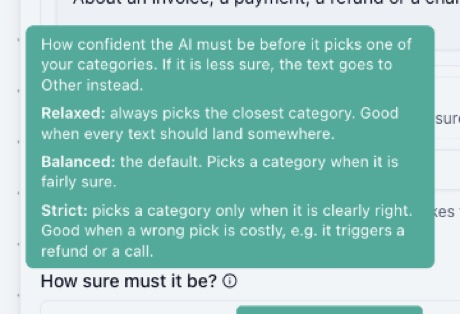
- How sure must it be?: how confident the AI must be before it picks one of your categories. If it is less sure, the text goes to Other.
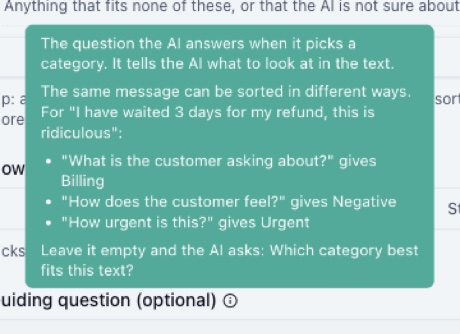
- Guiding question (optional): the question the AI answers when it picks a category.
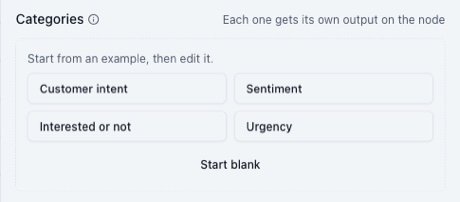
Start from an example
A new Classify node offers ready-made category sets. Pick one, then rename, add or remove categories to fit your business. Start blank gives you two empty categories instead.
| Example | Categories | Guiding question |
|---|---|---|
| Customer intent | Sales, Support, Billing | What does the customer want? |
| Sentiment | Positive, Neutral, Negative | How does the writer feel? |
| Interested or not | Interested, Not interested | Is the person interested in the offer? |
| Urgency | Urgent, Not urgent | How urgent is this? |
When text goes to Other
Connect a next step to Other, for example a Slack message to your team, so no text is lost. Text goes to Other when:
- it fits none of your categories,
- the AI is not sure enough for the How sure must it be? setting you chose,
- or the text is empty when the workflow runs, for example because an earlier node did not send the field. The workflow keeps running.
| Setting | What happens | Use it when |
|---|---|---|
| Relaxed | Always picks the closest category. Other only when nothing fits. | Every text should land somewhere. |
| Balanced (default) | Picks a category when it is fairly sure, otherwise Other. | Most workflows. |
| Strict | Picks a category only when it is clearly right. Everything else goes to Other. | A wrong pick is costly, for example it triggers a refund or a call. |
The guiding question
The same message can be sorted in different ways depending on the question. For "I have waited 3 days for my refund, this is ridiculous":
| Guiding question | Categories | Result |
|---|---|---|
| What is the customer asking about? | Sales, Support, Billing | Billing |
| How does the customer feel? | Positive, Neutral, Negative | Negative |
| How urgent is this? | Urgent, Not urgent | Urgent |
Leave it empty and the AI asks "Which category best fits this text?" That is enough when your category names and descriptions already make the choice clear.
Use the result in later nodes
Type @ in a later node and pick the Classify node to insert any of these:
| Field | What it holds |
|---|---|
category | The category the text was sorted into, or Other. |
matched | true when one of your categories was picked, false when the text went to Other. |
best_guess | The AI's closest category, even when the text went to Other. Empty when the text was empty. |
confidence | How sure the AI was of its pick, from 0 to 1. |
scores | How likely each category was, from 0 to 1. |
For "I was charged twice this month" with the Customer intent example, the result looks like this:
{
  "category": "Billing",
  "matched": true,
  "best_guess": "Billing",
  "confidence": 0.91,
  "scores": { "Billing": 0.91, "Support": 0.06, "Sales": 0.02, "Other": 0.01 }
}
When the AI leans toward a category but is not sure enough, the text goes to
Other and best_guess keeps the closest category:
{
  "category": "Other",
  "matched": false,
  "best_guess": "Billing",
  "confidence": 0.42,
  "scores": { "Billing": 0.42, "Support": 0.3, "Sales": 0.18, "Other": 0.1 }
}
For example, a Slack message on the Billing exit can include the customer's
message and confidence, so your team sees how sure the AI was. When text
lands in Other with best_guess set, the AI had a guess but was not sure
enough: a good case to send to a person.
Messages
These show in the run's execution log and stop the run at this node:
| Message | What to do |
|---|---|
| Classification is unavailable right now. Retry the run in a minute. | The AI service did not answer. Retry the run. |
| Classification is not set up on this server yet. | Classification is not switched on for your account. Contact support. |
| Missing required config: categories | Add at least one category. |
| Every category needs a name. | Name every category, or remove the empty one. |
| "Other" is built in. Give your category a different name. | Rename the category: Other is added for you. |
| Two categories are both called "…". Give each a different name. | Give each category its own name. |
| Use at most 50 categories. | Remove categories, or split the sorting across two Classify nodes. |
The editor catches the category problems before you save, in the red Incomplete configuration box, together with "Choose the text to classify." when the text is missing.
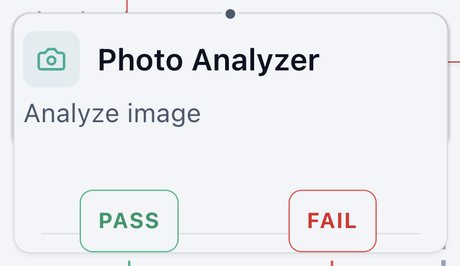
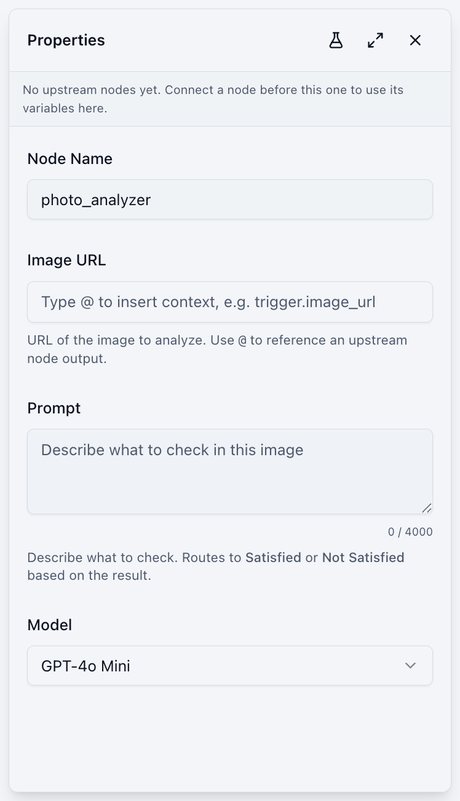
Photo Analyzer
Looks at an image and decides whether it meets your criteria.
Exits: PASS, FAIL
- Image URL: usually inserted from an earlier node, such as a WhatsApp photo.
- Prompt: what to check, for example "Is this a clear photo of a damaged product?"
- Model.
Was this page helpful?