

Salesforce
Connect your Salesforce CRM with your voice AI agent to manage contacts, leads, and opportunities.
The Salesforce integration allows your agent to access and update records in your CRM automatically. After each call, OmniDimension can push post-call data to Salesforce objects like Leads, Contacts, or Opportunities.
Key benefits
- Automatically update CRM records after a call
- Streamline lead management workflows
- Create or update contacts, accounts, and opportunities based on extracted variables
Setup option 1: from the main dashboard
Open the integrations page
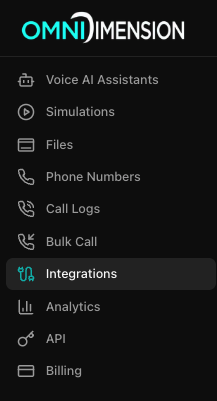
Go to the Integrations page in your dashboard and select the All Integrations tab.
Connect Salesforce
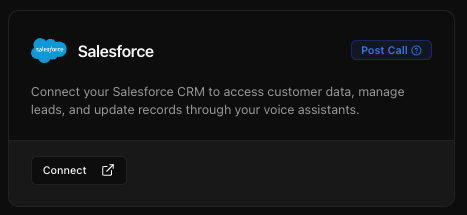
Find the Salesforce card and click Connect. Enter your Salesforce instance details and credentials, then save the integration and test the connection.
Attach to your agent
Go to your agent's edit page, open the Integrations tab, and attach the Salesforce integration from the dropdown.
Setup option 2: from agent configuration
Open the agent's integrations tab
Go to your agent's edit page and open the Integrations tab.
Connect Salesforce
Choose Salesforce from the Connect New Integration section and click the connect button. Enter your integration name, description, and instance URL.
Provide credentials
Provide your Salesforce username and password, then enter your client ID and client secret from the connected Salesforce app.
Select objects and save
Select the Salesforce objects you want to connect to (for example, Lead, Contact, Opportunity). Click Save to finish setup and attach the integration to the agent.
Configuration fields
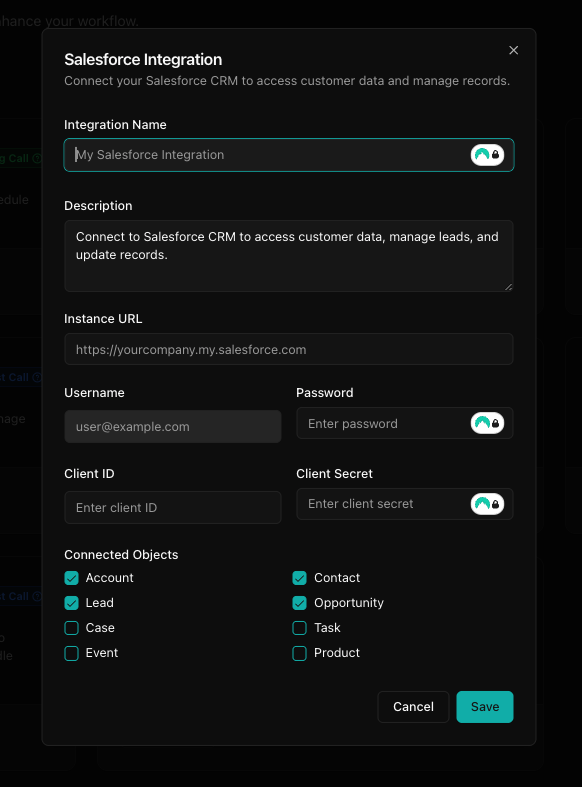
- Integration Name: choose a recognizable name
- Description: purpose or details about this integration
- Instance URL: your Salesforce domain URL (for example,
https://yourcompany.my.salesforce.com) - Username and Password: your Salesforce login credentials
- Client ID and Client Secret: from your connected Salesforce app
- Connected Objects: select the Salesforce objects (Leads, Contacts, Opportunities, etc.) you wish to sync
Using with your agent
- Extracted data from user calls will be sent to Salesforce automatically
- Mapped variables are updated in the selected objects
- Conversation history, intent, and sentiment can also be logged
Tips for a successful integration
- Use a dedicated Salesforce integration user account
- Ensure the connected app has API access enabled
- Map only the necessary fields to avoid data clutter
- Test the connection thoroughly using sample calls