

Slack
Send automated messages and notifications from your voice AI agent into your Slack workspace.
Slack integration lets your agent send real-time messages and notifications directly to your Slack workspace. Use it to alert your team, log events, or notify users within specific channels.
Key benefits
- Send real-time alerts and updates to Slack
- Keep your team informed about user activity
- Trigger notifications based on agent interactions
Setup option 1: from the main dashboard
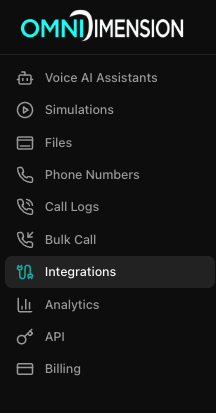
Open the integrations page
Go to the Integrations page in your dashboard and select the All Integrations tab.
Connect Slack
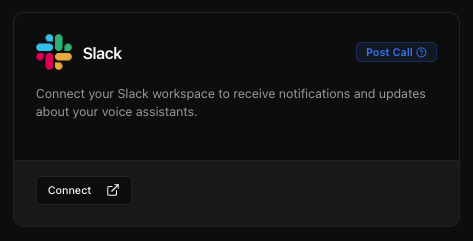
Find the Slack card and click Connect. Configure the integration name and description, then complete the OAuth authorization.
Attach to your agent
Go to your agent's edit page, open the Integrations tab, and attach the integration from the dropdown.
Setup option 2: from agent configuration
Open the agent's integrations tab
Navigate to your agent's edit page and find the Integrations tab.
Connect with Slack
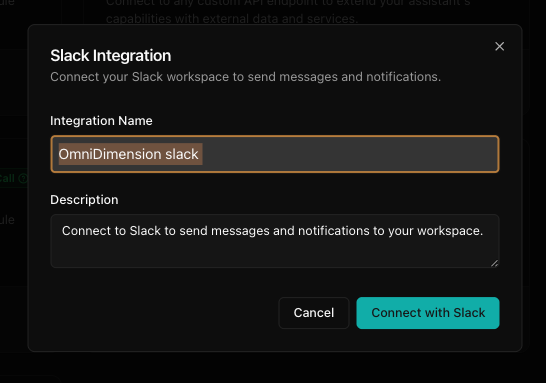
Find Slack under the Connect New Integrations section and click Connect with Slack. A modal will appear where you can enter the integration name and description. Click Connect with Slack to authorize via OAuth and finalize the integration.
Using with your agent
- Trigger Slack messages when a specific user action occurs
- Send call summaries or event-based alerts
- Notify team members in specific Slack channels
Best practices
- Name the integration clearly to identify its purpose
- Use dedicated Slack channels for different agents or event types
- Keep descriptions concise but meaningful for your team
- Test the Slack integration by simulating a user event